Off-grid coding with OpenCode and vLLM

Over the past few weeks I spent some time exploring what it takes to run open-source coding agents with open-source LLMs. It turns out, you can use a local LLM quite well for small to medium-sized programming tasks if you use the right approach!
I used a Dell Pro Max with a Black GB10 chip, an alternative to the Nvidia Spark DGX with the same specs. In this post, I'll show you how I set up Qwen3 Coder Next with OpenCode.
Steps needed to set up a local LLM
It takes a few steps to configure a local LLM:
- First, you'll need to configure vLLM on your machine.
- Next, you need to serve a coding model with vLLM
- Finally, you need to configure OpenCode to use your local LLM
Let's start by setting up vLLM first.
Installing vLLM
Installing vLLM takes a bit of work. We need to set up Python correctly, and then install the vLLM packages with a specific command to ensure we're using the correct packages.
Step 1: Install the uv package manager
Let's start by setting up a proper Python environment for hosting LLMs.
I don't recommend running the system Python installation because if you mess up dependencies, you have to reinstall a load of packages on your machine. Instead, use the uv package manager.
You can install the uv package manager like this:
# On macOS and Linux.
curl -LsSf https://astral.sh/uv/install.sh | sh
Step 2: Create a virtual environment
Next, create a new directory on your machine for the vLLM server to run from. I prefer to run mine from ~/projects/vllm. In this new directory, run the following command to set up a new virtual environment:
uv venv --python 3.12 --seedAfter creating the virtual environment, run the following command to activate it so you can install vLLM:
source .venv/bin/activateStep 3: Install vLLM
Run the following command to install vLLM in the virtual environment:
export VLLM_VERSION=$(curl -s https://api.github.com/repos/vllm-project/vllm/releases/latest | jq -r .tag_name | sed 's/^v//')
export CUDA_VERSION=130
export CPU_ARCH=$(uname -m)

uv pip install \
  https://github.com/vllm-project/vllm/releases/download/v${VLLM_VERSION}/vllm-${VLLM_VERSION}+cu${CUDA_VERSION}-cp38-abi3-manylinux_2_35_${CPU_ARCH}.whl \
  --extra-index-url https://download.pytorch.org/whl/cu${CUDA_VERSION} \
  --index-strategy unsafe-best-match
This script performs the following steps:
- First, we determine the latest release available for vLLM
- Next, we configure the CUDA version to use, and the CPU architecture to download the binaries for. Note, this should be
aarch64for the Nvidia Spark DGX machine. - Finally, it installs the latest vLLM release from the official Github release source. This is important, as the version published on the PyPi website doesn't support the correct CUDA version.
Serving a coding model with vLLM
Once you have vLLM installed you can run a local LLM using the following command:
vllm serve <model-id>Now here's where it gets tricky. Not all models are suitable for coding with a coding agent. I spent a couple of weeks testing various models. Here's my favorites list:
The key information to remember is that open-source models aren't one-size-fits-all. You're looking for models that work well with:
- Tool calling
- Agentic tasks
- Reasoning
Preferably, you want all three of these things. But since the models are a lot smaller, you're likely only getting two out of three here. All this means is that you have to adopt a slightly different approach to developing applications with these models.
I've found it useful to split tasks into smaller chunks before feeding them to a local LLM. Not only will your experience be much faster, but it will also yield better-quality results. Make sure to use a stacked pull request approach if you're working in a team.
Depending on your internet connection, it can take a while to download all the model weights.
The models I mentioned earlier require specific settings for use with OpenCode. For example, for the Qwen3-Coder-Next model, you'll need to start vLLM with this command:
vllm serve --gpu-memory-utilization 0.8 --tool-call-parser qwen3_coder --enable-auto-tool-choice --attention-backend FLASH_ATTN --enable-prefix-caching Qwen/Qwen3-Coder-Next-FP8With these settings, you can run 3 agents concurrently on a single machine. If you limit the context window size to anything less than 256K, you can run even more agents. However, you need to make sure the tasks are smaller as well.
Connecting vLLM to OpenCode
After you've configured vLLM, you need to connect it to OpenCode, an open-source coding agent that supports a wide range of models and providers. Even if you're not using a local LLM, I can recommend this tool for its speed and design.
If you haven't installed OpenCode yet, you can follow these steps.
Step 1: Download and install OpenCode
First, use the following command to install Opencode:
curl -fsSL https://opencode.ai/install | bashThe coding agent is now available via the opencode command.
Step 2: Configure the local model
Next, create the configuration file in ~/.config/opencode/opencode.json with the following content:
{
  "$schema": "https://opencode.ai/config.json",
  "provider": {
    "vllm": {
      "npm": "@ai-sdk/openai-compatible",
      "name": "vllm",
      "options": {
        "baseURL": "http://localhost:8000/v1"
      },
      "models": {
        "Qwen/Qwen3-Coder-Next-FP8": {
          "name": "qwen3-coder-next"
        }
      }
    }
  }
}
OpenCode configuration file contents
The provider element configures vLLM as a local provider. You need to use the @ai-sdk/openai-compatible package to run the provider. It's a Vercel package for running LLMs in JavaScript/TypeScript. You can name the provider you like. I made sure to name it the vLLM provider so I can find it a little easier. It's important to configure the URL for the provider to http://localhost:8000/v1.
Note: You can, of course, run vLLM on your Nvidia Spark DGX and code from your laptop. I added added the VLLM_API_KEY environment variable with a generated key to make sure nobody can use my local LLM without proper authentication.
Obtaining the model identifier for OpenCode
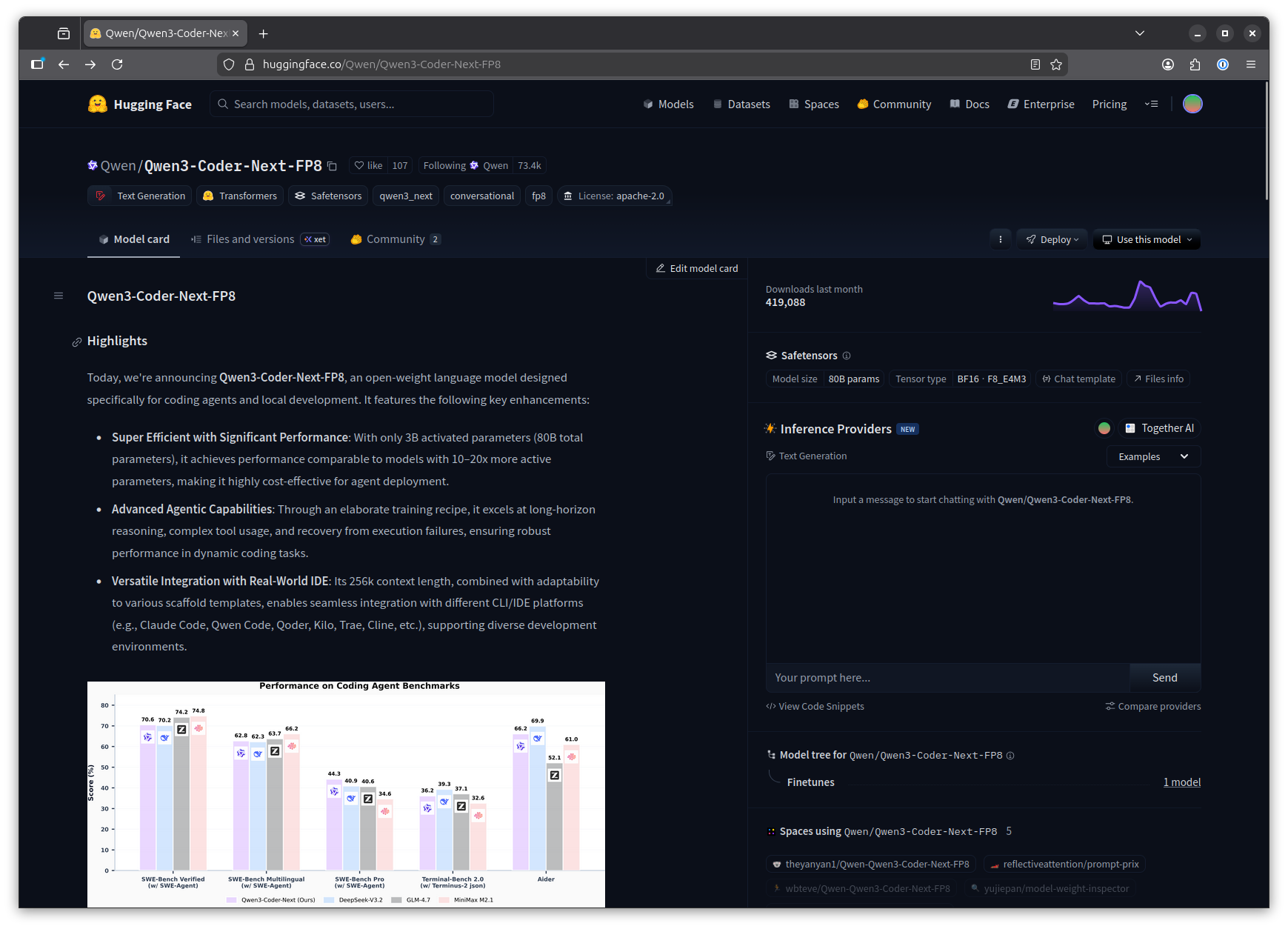
The models section in the OpenCode configuration file lists the models you want to use. I listed just one in the example. The key for the model is the model identifier, as shown on huggingface.co. You can copy the model identifier quickly by clicking the copy button next to the model repository name.
I recommend limiting the context window size to a reasonable number. The larger the number for max_tokens the more memory you'll use. It will also make the model a lot slower.
Start coding!
After completing the configuration, you can now run opencode in your project directory and select the configured model by entering the command /models inside OpenCode.
Enjoy your coding adventures!